Art Guidelines
Submitting the right artwork file makes a significant difference to the quality of your finished order. At Artik, the goal is always to use your art file to produce the best possible print. Following these artwork guidelines gives us the best foundation to do exactly that. If you have any questions about your design, reach out to info@artik.com, and our team will help you get it sorted.
Artwork Guidelines: Accepted File Types and Formats
Different file types suit different situations, and understanding which format works best for your project sets the stage for success. Artik accepts a range of file types to accommodate clients using different software and at different skill levels.
Vector files are strongly preferred for screen printing, as they scale without loss of quality and enable precise color separation.
-
Adobe Illustrator Files (.ai)
Illustrator files are vector-based and offer the highest level of print quality. Before sending, convert all fonts and type to outlines to avoid font compatibility issues. Saving the file as an .EPS format improves compatibility across different systems.
-
Adobe Photoshop Files (.psd)
Photoshop files are raster-based, which means resolution matters. Files should be 300 DPI or higher at the actual intended print size. Keep file size below 6MB where possible, and always send the .psd file with layers intact so our team can make adjustments if needed.
-
CorelDRAW Files (.cdr)
CorelDRAW files are fully accepted and work well for custom print projects. As with Illustrator files, convert all fonts and type to outlines before submitting to avoid text-rendering issues during production.
-
Image Files (.jpg or .png)
Image files are accepted provided they meet the quality threshold. Files should be saved at 300 DPI at the actual print size. Low-resolution images stretched to fit a larger print area will result in a soft or pixelated finished product, so quality matters here.
-
PDF Files
PDF is a reliable format for reducing file size without compromising quality too much. If all you have is a Word document containing your artwork, send it over as a PDF. Our art department will assess it and help recreate the design where needed.
Standard Pantone Colors
Please provide PMS numbers using the solid-coated Pantone reference for color accuracy across print runs. Supplying PMS codes allows our team to match your brand colors as precisely as possible during ink mixing and production.
Need Help With Your Artwork?
Not every client comes to us with print-ready artwork, and that's perfectly fine. Artik's art department is available to help recreate or prepare files at a rate of $30 per half hour. For clients working with incomplete or low-resolution files, this service can save a lot of back-and-forth and get your order into production faster.
Alternatively, the online design tool available on each product page gives you access to over 13,000 free design templates and clip art. [Learn More]
Our team digitizes your artwork as part of the embroidery order process, converting it into the correct machine-readable format. Presenting a clean, high-quality file still makes a meaningful difference to the accuracy of the final stitched result.
Vector vs. Raster Files
Understanding the difference between vector and raster files helps you submit the right format from the start.
Vector files (such as .ai, .eps, and .cdr) are made up of mathematical paths rather than pixels. They scale to any size without losing quality, making them ideal for logos and print graphics.
Raster files (such as .jpg, .png, and .psd) are made up of pixels. Scaling them up reduces quality, which is why resolution requirements are so important. A file submitted at 72 DPI will not produce a sharp print, regardless of how it looks on a screen.
When in doubt, vector is always the safer choice for apparel printing.
Digital Printing: Bleed Guidelines
What Is Bleed?
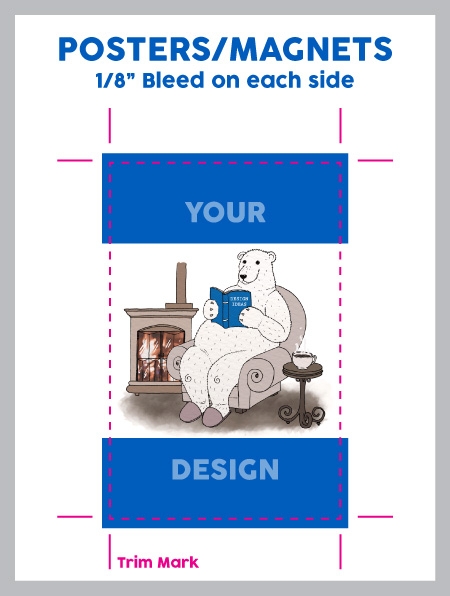
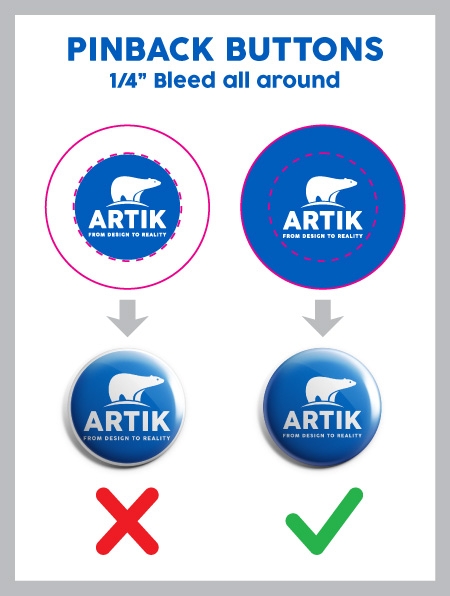
Bleed refers to the extra margin of artwork that extends beyond the intended cut line. When designs are printed on large sheets and then trimmed, a small trimming tolerance is unavoidable. Without bleed, even minor trimming shifts can result in a thin white border appearing on the edge of your design.
As a general rule, extend your artwork 1/8" to 1/4" outward from the final cut edges, depending on the product. Specific bleed requirements vary by item, so check the product page or ask our team if you're unsure.
Submit Great Artwork, Get a Great Result
Taking a few extra minutes to prepare your artwork correctly saves time in production and leads to a finished product you'll be proud of. Artik's team is always available to guide you through the process if anything feels uncertain.
Send us your file and let's turn your design into something worth wearing. Contact us if you need further assistance.
ART GUIDELINE
Our goal is to use your art file to create the best print possible.
Contact info@artik.com and we'll help answer your design questions.
Standard Pantone Colours
Please provide us with PMS# (solid coated)
Sending Us Your File
Send us your design as a vector file or a high-quality image file. We'll accept any of the file types below:
|
|
Adobe Illustrator Files .ai• Illustrator files are vector - top quality. • Please convert all fonts (type) to outline. • Save the file as .EPS for maximum compatibility
|

|
|
Adobe Photoshop Files .psd• Keep file size below 6MB if possible. • Photoshop files are best at 300 DPI or higher. • Send the .psd file with Layers.
|

|
|
Corel Draw Files .cdr• Corel Draw files are great! • Be sure to convert all fonts (type) to outlines.
|

|
|
Image Files .jpg or .png• Image files need to be high quality. • Save the image as 300 DPI at actual print size.
|

|
|
• Save your file as a PDF to reduce file size. • Only have a Word Document of your artwork? Send us a PDF and we'll help recreate the design.
|

Need Help?
We recommend that you or your graphic designer supply us with art that is ready to print.
If you can't supply a high resolution file, our Art Department staff will help re-create at $30 per half an hour.
You can also check out our online design lab under each product page. It comes with over 13,000 free design templates and clip art. [Learn More]
Please see other common questions below:
Vector vs. Raster Files
What is a Vector file?
Vector files use lines, curves and shapes to create an image based on mathematical formulas.
Advantage of Vector:
Vector designs can be enlarged without getting pixelated or blurry.
Disadvantage of Vector:
Photographs and images usually can't be vectorized. Vector is best for shapes and text.
Which programs use Vector?
Adobe Illustrator and Corel Draw are two popular vector art programs.
Common Vector Problem: Missing Font
 Solution 1:
If you are using a rare font, send us the font file (.ttf) with your vector design file (.ai .cdr)
 Solution 2:
Alternatively, send us a copy of your file with all fonts converted to curves (outlined).
Be sure to save the original under a different name in case you want to edit the text later on.
What is a Raster file?
Raster files use pixels to display an image.
Advantage of Raster:
Raster files are good for photographs.
It can print well when you set your image size and quality high.
Disadvantage of Raster:
Raster files can look blurry when enlarged. Be sure to save at high quality from the start.
Which programs use Raster?
Adobe Photoshop is a popular raster program. Most images online are raster files as well.
Common Raster Problem: Low Quality Image
Solution 1: Send a Higher Quality Image
When creating a new document in Photoshop, select Image > Image Size and set the quality to 300 DPI. Note that enlarging a low quality jpg will not increase the quality.
Once you have a higher quality image, send it to us!
Solution 2: Hire our Designer
For $30 per half hour, one of our Graphic Designers will help re-create your design.
Digital Printing: Bleed Guideline
What is bleed?
What does it mean when your printer tells you that your artwork requires bleed? It means that your design will get printed on large sheets, then trimmed down. That is when trimming tolerance needs to be taken into account. Usually, you need to extend your artwork 1/8" to 1/4" outwards from the final cut edges depending on the product. Examples below: